How This Works
This guide will walk you through using the AUSg1u platform to submit and view your hospital's glucometric data. Images are shown to help illustrate certains steps in the process.
Creating an Account
- Click Sign Up on the website.
- Set up an account by using email address associated with the affiliated institution from which the glucose data is derived from.
- After sign up, you will be redirected to Account Profile section, use the search box to find your hospital by name, location, or provider number.
- Click Set Hospital to save your selection.
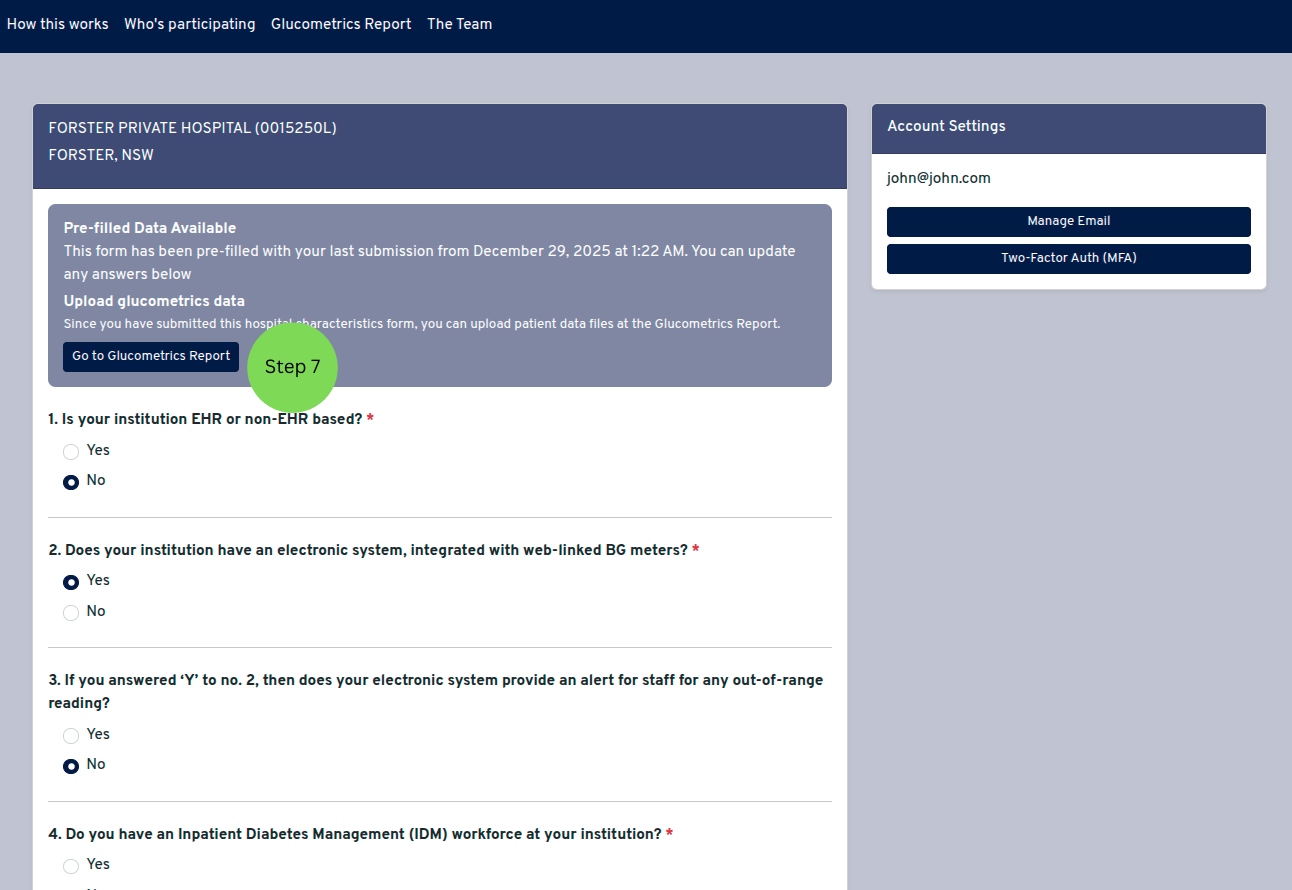
- After setting your hospital, the hospital characteristics form will appear on your Account Profile page.
- Complete the hospital characteristics survey, to the best of your knowledge, to complete creating the account.
- Once you complete the hospital characteristics survey, you will see a message with a link to Go to Glucometrics Report to upload your data.
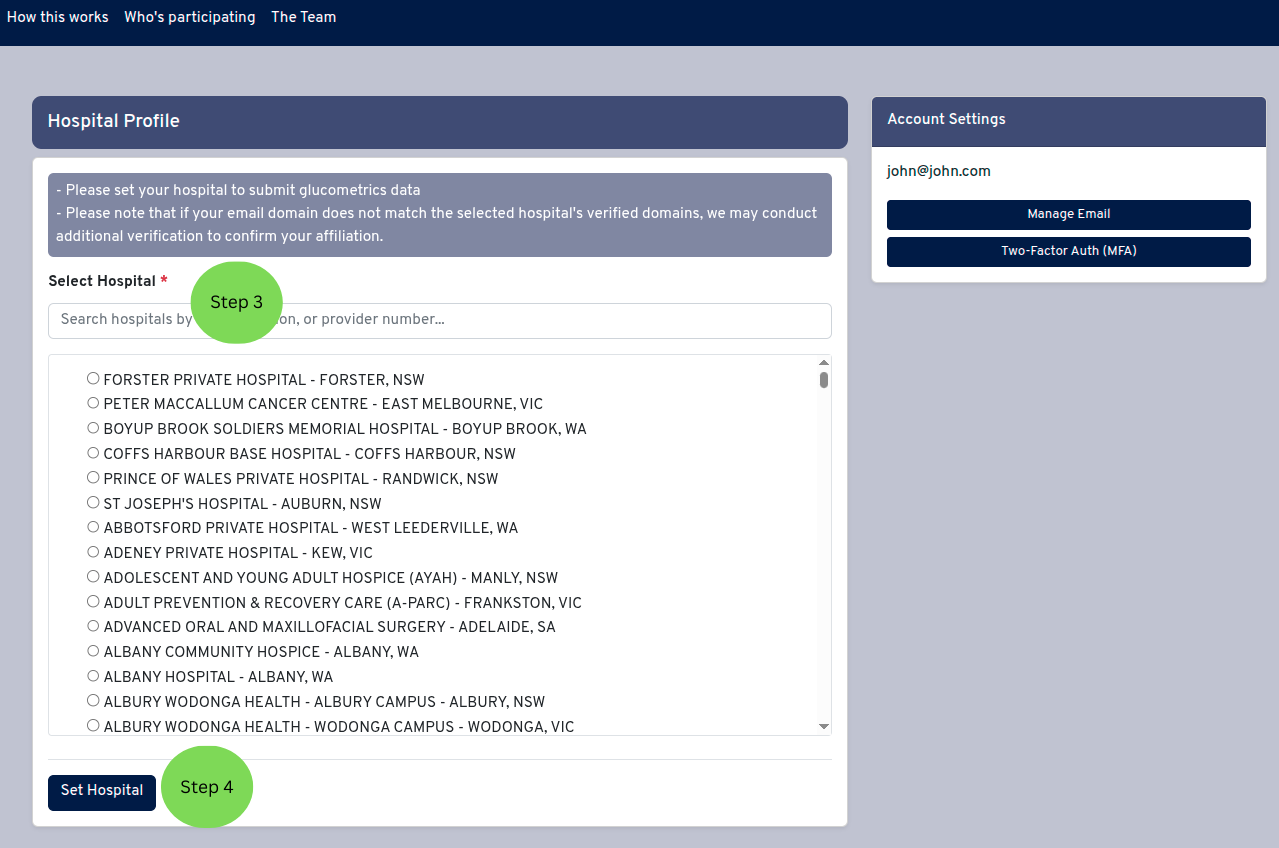
Please note that if your email domain does not match the selected hospital's verified domains, we may conduct additional verification to confirm your affiliation.
You can update your hospital characteristics at any time by returning to your Account Profile page. Your previous answers will be pre-filled.
You can update your hospital characteristics at any time by returning to your Account Profile page. Your previous answers will be pre-filled.
Preparing Your Data
The Data Cleaner helps deidentify patient data and detect any errors on the spreadsheet.
- If your institution uses an Electronic Health Record (EHR) system, upload the spreadsheet downloaded from the EHR. Please refer to our template spreadsheet for non-EHR based institutions to help guide with arranging columns prior to using the software.
- If your institution does not use an EHR system, please download our template spreadsheet and complete the template excel spreadsheet prior to uploading onto the software.
Uploading Cleaned Data to Website
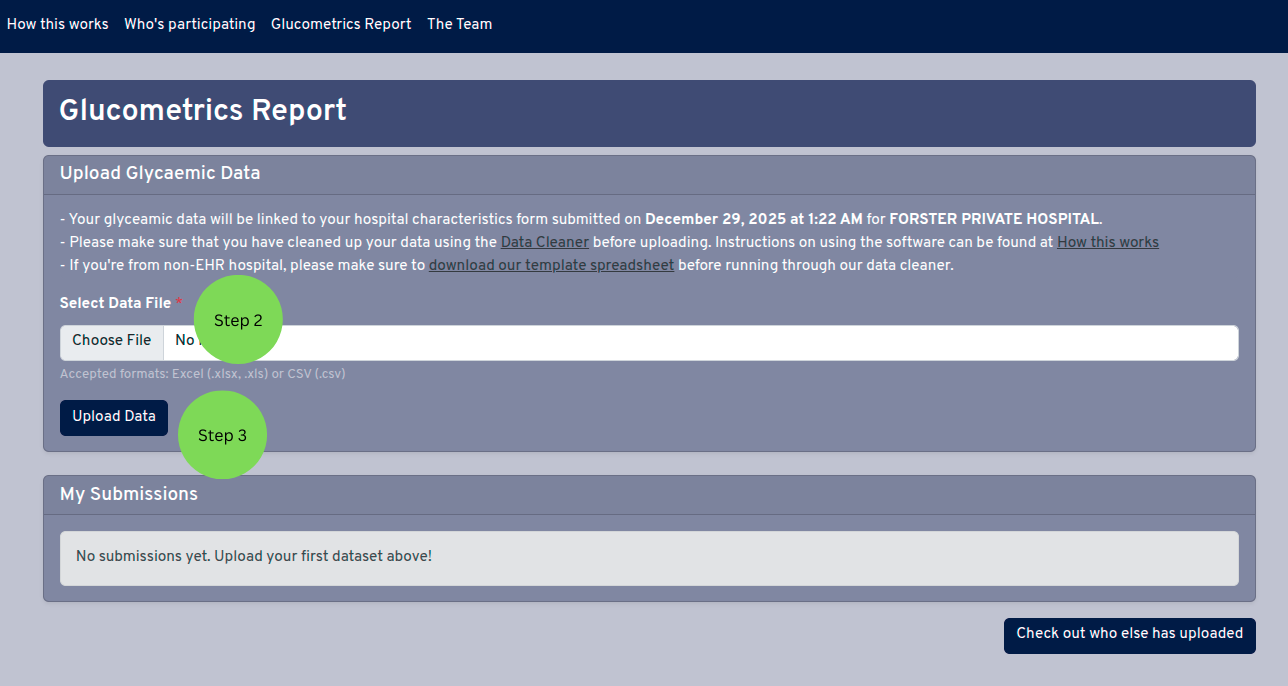
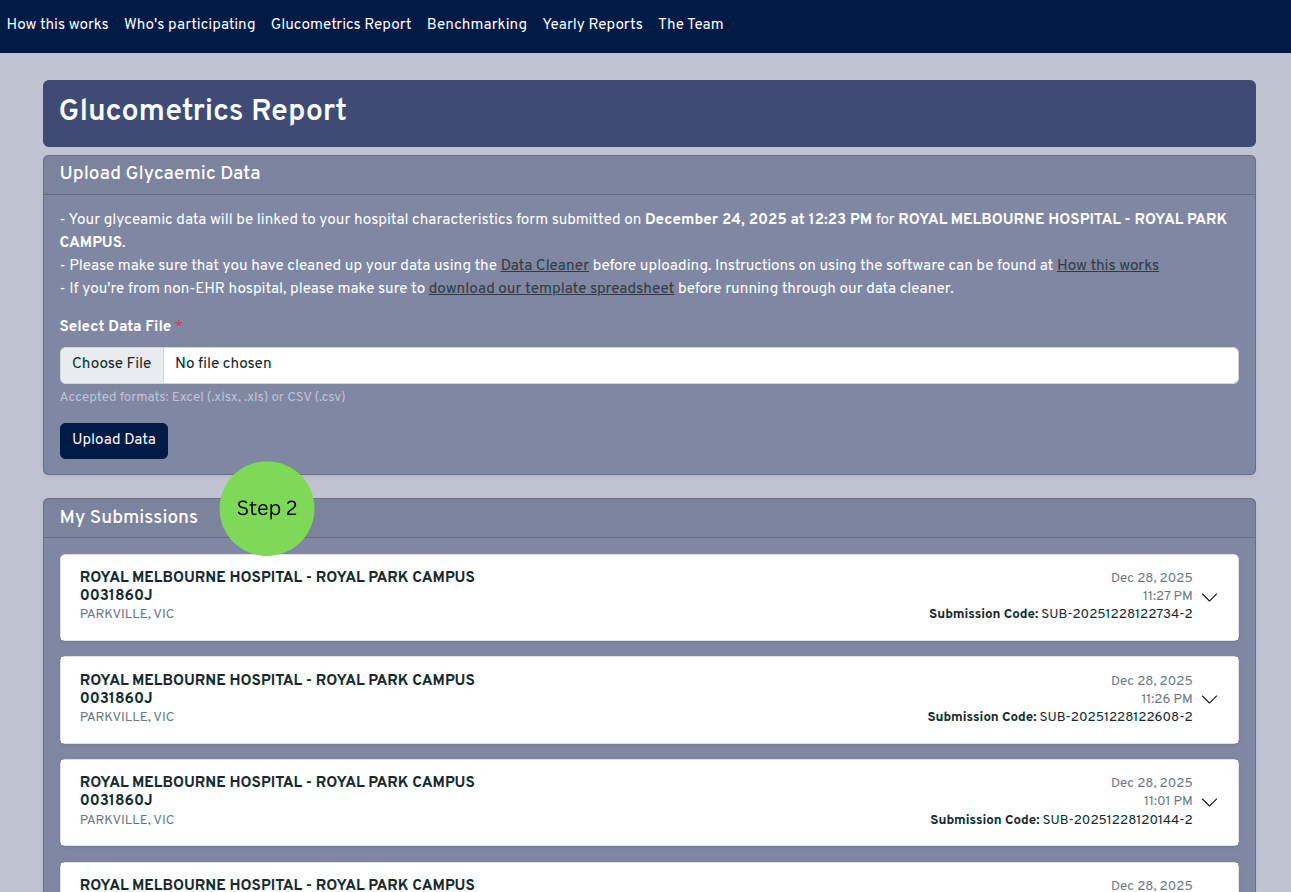
- Go to the Glucometrics Report page.
- In the Upload Glycaemic Data section, click Choose File to select your cleaned data file.
- Accepted formats: Excel (.xlsx, .xls) or CSV (.csv)
- Click Upload Data to submit your file.
- Wait for the upload to complete - please do not close or refresh the page during this process.
- Once uploaded, you will receive a submission code for your records.
Viewing Your Submissions
After uploading data, you can view your submissions and their calculated glucometric reports.
- Go to the Glucometrics Report page.
- Scroll down to the My Submissions section.
- Click on any submission to expand it and view the detailed metrics.
- Each submission shows:
- Hospital name and provider number
- Submission date and time
- Your unique submission code
- Calculated glucometric data broken down by ward type
- Use the Export CSV button next to each metrics table to download the data.
Check out who is also participating
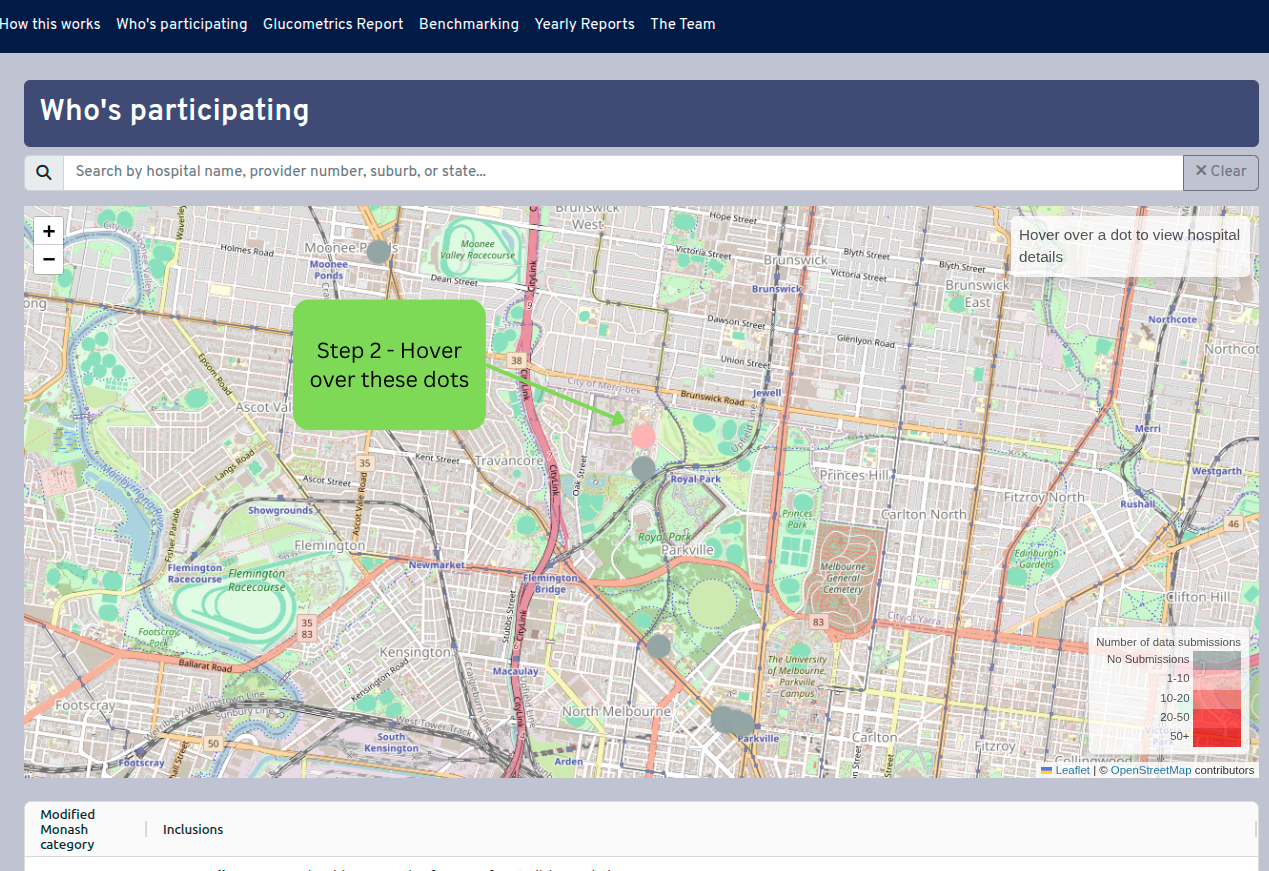
The tracking map shows all participating hospitals across Australia.
- Go to Who's participating page.
- Hover over a dot to see the hospital's basic information.
- Click on a dot to open a popup with more detailed information about the hospital.
- Their glucometric data would not be visible, but annually you will receive a comprehensive report on how your institution is doing compared to other participating institutions. All institutions are kept anonymous so you don't have to be concerned about your institution's data being public and compared publicly.